 EnergyDraft
Windows desktop
From CAD to energy model.
Windows desktop app for importing floor plans, drawing in 2D, reviewing the building in 3D, and exporting EnergyPlus IDF, IES VE GEM, gbXML, OpenStudio OSM, and eQUEST PD2.
- IDFEnergyPlus
- GEMIES VE
- gbXMLgbXML
- OSMOpenStudio
- PD2eQUEST
A straight path from drawing to model
Import geometry, draft in 2D, detect zones, review in 3D, and export to the simulation format you already use.
01
Import
DXF, DWG, or a calibrated reference image.
02
Draw
Trace or draft rooms with CAD-like snaps.
03
Zones
Detect thermal zones and set floor height.
04
3D
Place doors and windows, then review WWR.
05
Export
IDF, GEM, gbXML, OSM, or PD2.
What you can do in EnergyDraft
Projects, Develop, 3D View, and Convert cover the full desktop workflow — from an empty project to an exported energy model.
Projects
Create, search, and open building models. Each project keeps a 2D floor plan, 3D preview, and zone count in one place.
CAD import
Bring in DXF or DWG floor plans and start from existing drawings instead of tracing everything by hand.
Reference images
Place a scanned plan or screenshot on the canvas, then rotate and calibrate it to a real-world distance.
2D Draw
Draft walls and rooms with CAD-like tools: lines, rectangles, snaps, ortho, layers, and live length readouts.
Zone detect
Detect a single enclosed space or auto-detect all zones. Set floor height and review area before you export.
3D view
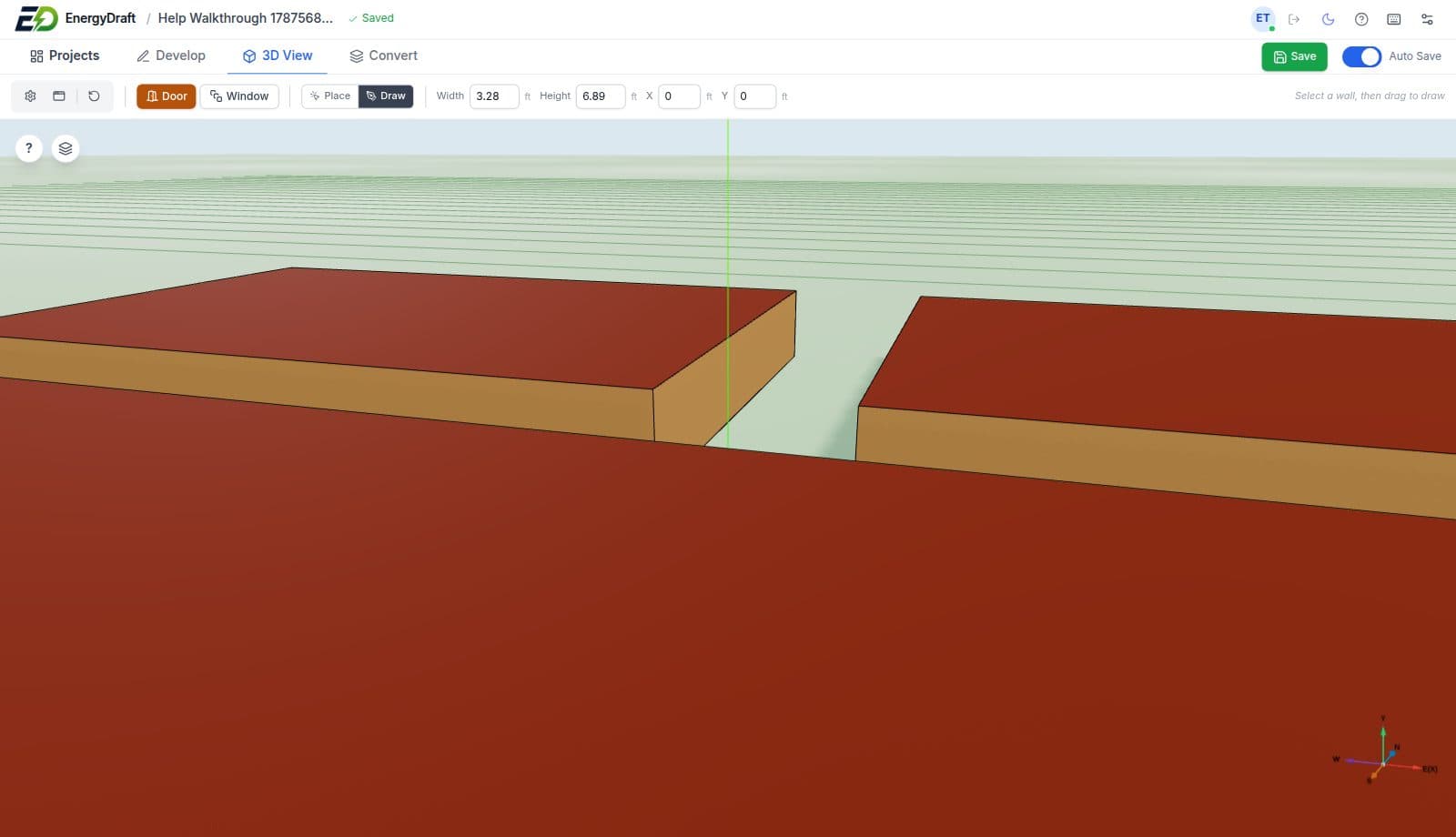
Review the extruded building, then place doors and windows on walls with width, height, and position controls.
Convert & export
Export an energy model as EnergyPlus IDF, IES VE GEM, gbXML, OpenStudio OSM, or eQUEST PD2.
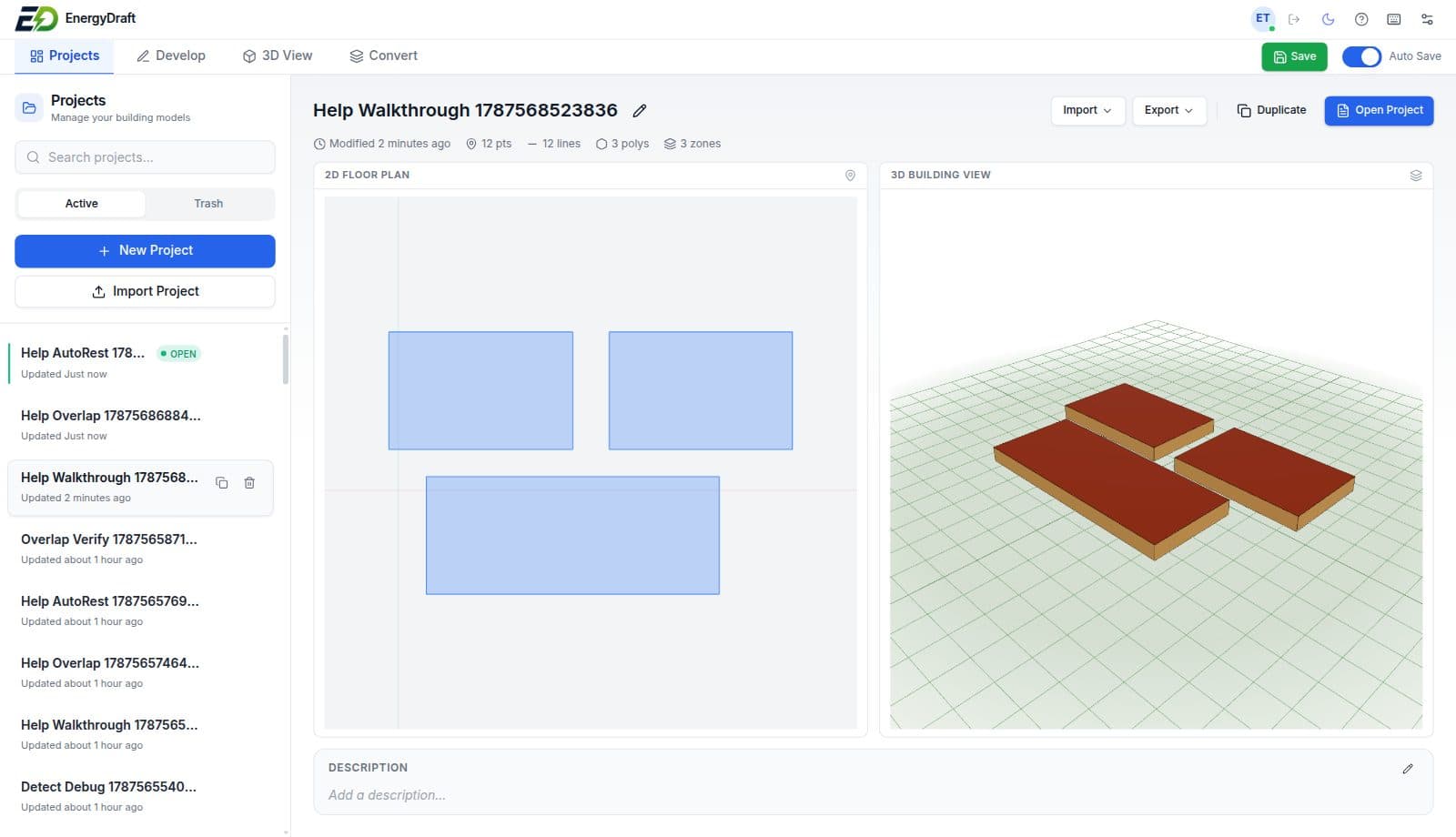
Projects
Keep every building model in one list.
Create a new project or import one. Search the list, open a model to see its 2D plan and 3D preview, and move unused work to trash without leaving the app.
- New project or import from an existing file
- Search active projects and recover from trash
- Project view shows plan, 3D preview, and zone count
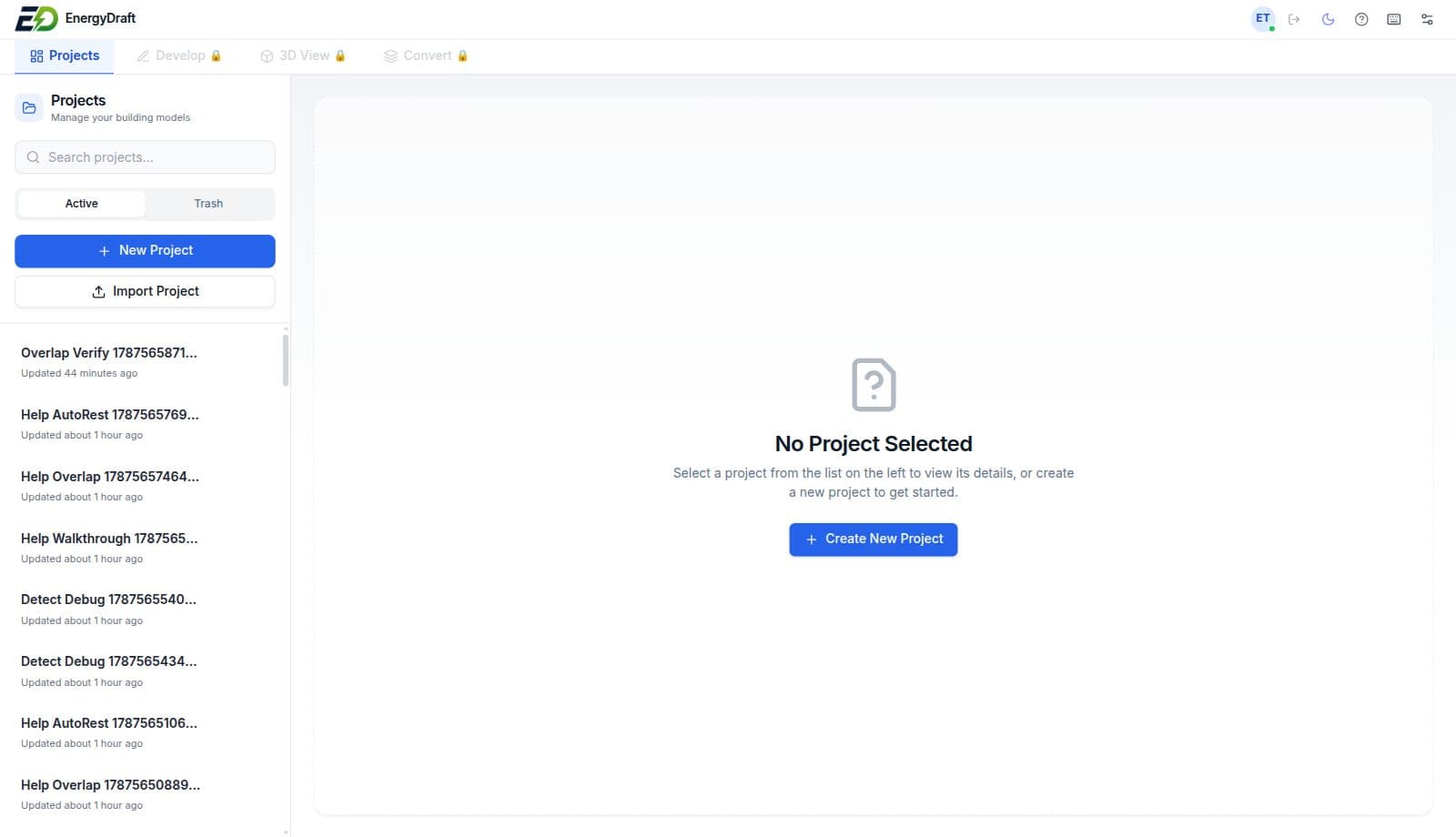
CAD / DXF / DWG
Start from the floor plan you already have.
Import DXF or DWG drawings into the workspace. If you already have an energy model, bring that in as well and continue from the geometry you have.
- DXF and DWG floor plans
- Separate path for existing energy-model files
- Draw over imported geometry instead of starting blank
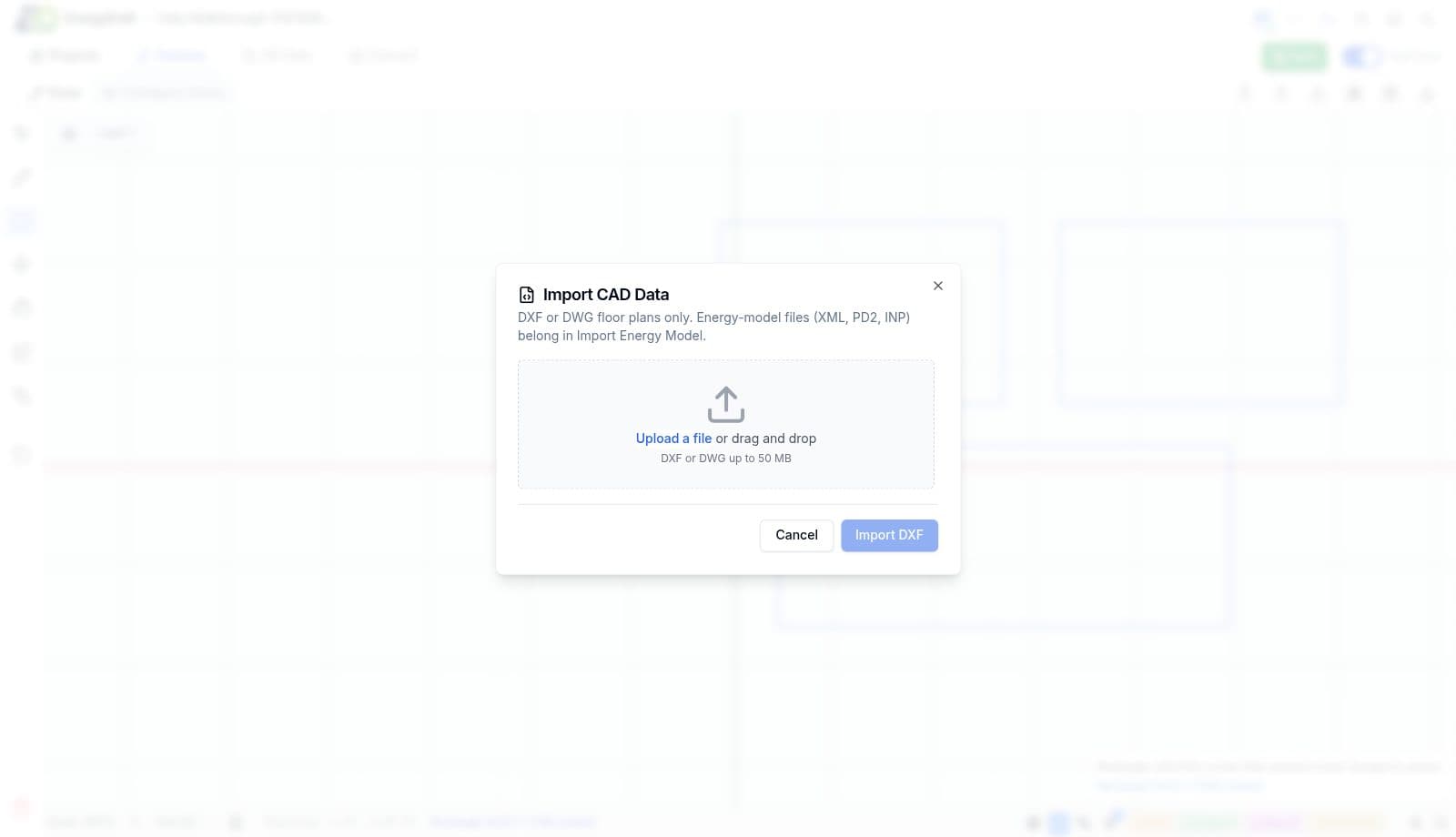
Reference image
Trace a scan. Calibrate it to real distance.
Place a reference image on the canvas, rotate it, and set a known length so the drawing matches the building. Images dim while you trace so the geometry stays readable.
- Import a plan image and rotate it to the canvas
- Calibrate with a real-world distance in feet or other units
- Trace over the image with snaps and ortho
2D Draw
Draft like CAD. Stay in the energy workflow.
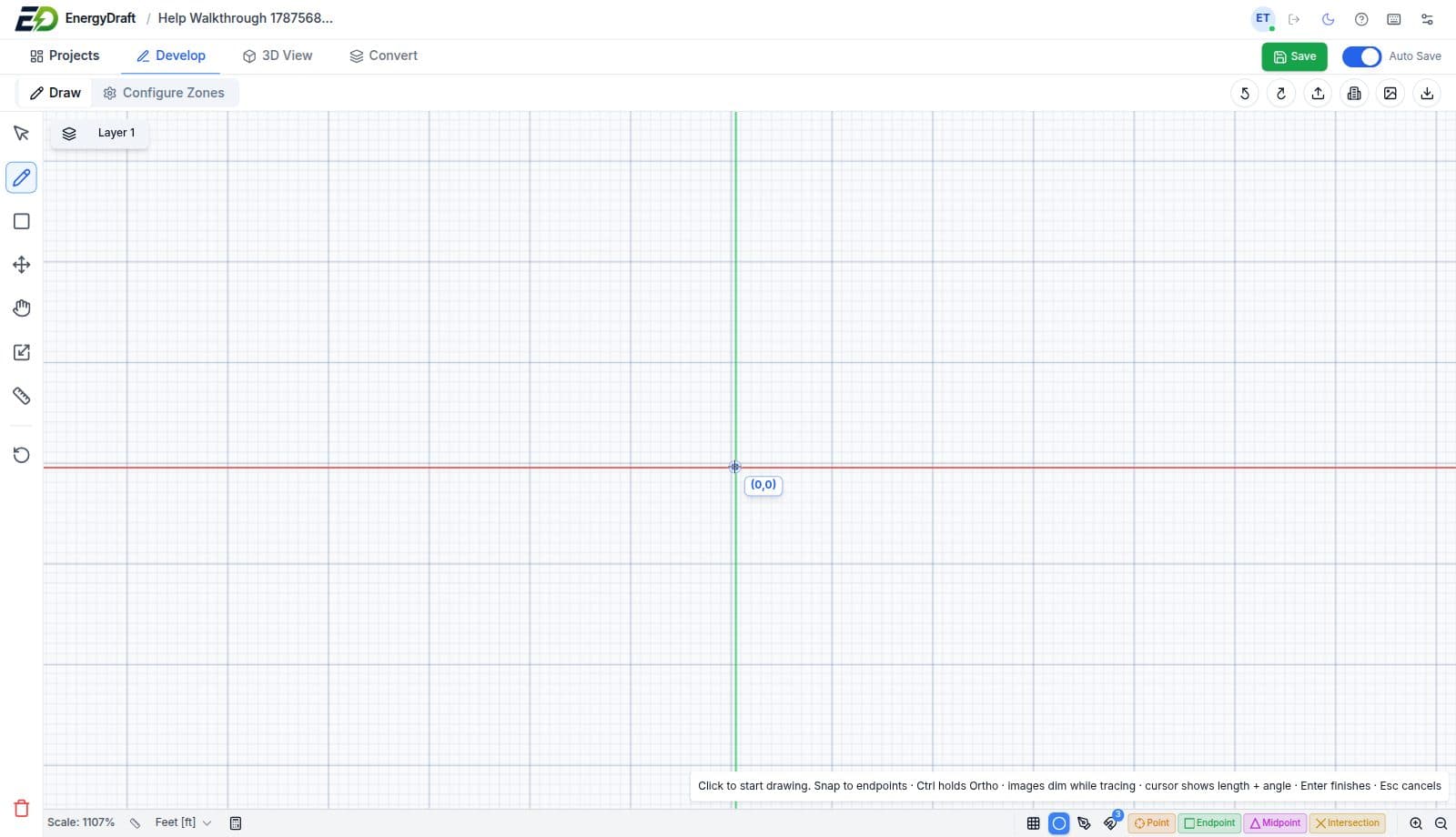
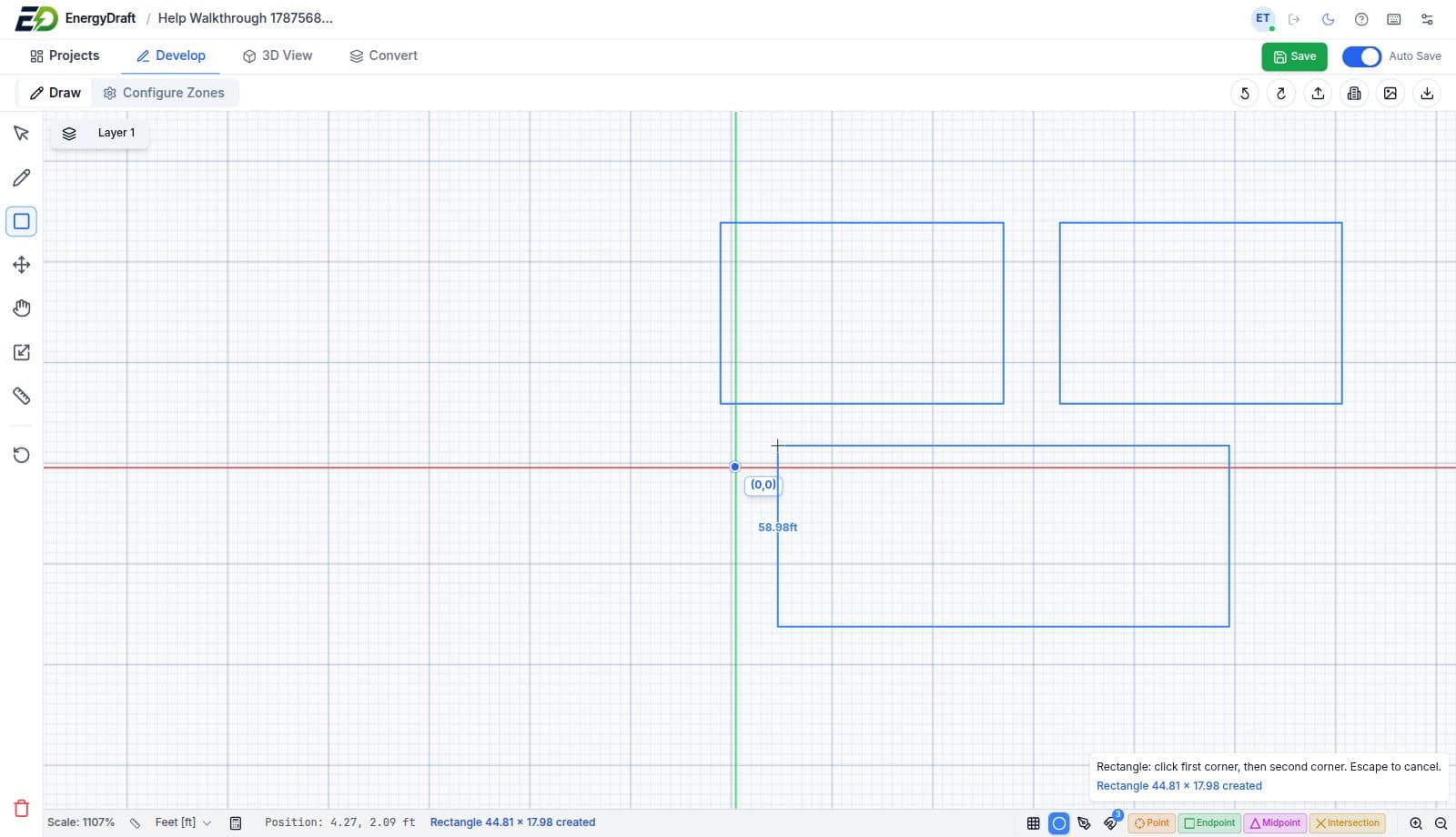
Develop is a 2D drawing workspace: select, line, rectangle, move, pan, and measure. Snap to points, endpoints, midpoints, and intersections. Ortho holds angles. The cursor shows length and angle as you draw.
- Line and rectangle tools with live dimensions
- Endpoint, midpoint, intersection, and point snaps
- Layers, units, grid, undo/redo, and on-canvas hints
Configure zones
Detect thermal zones from closed geometry.
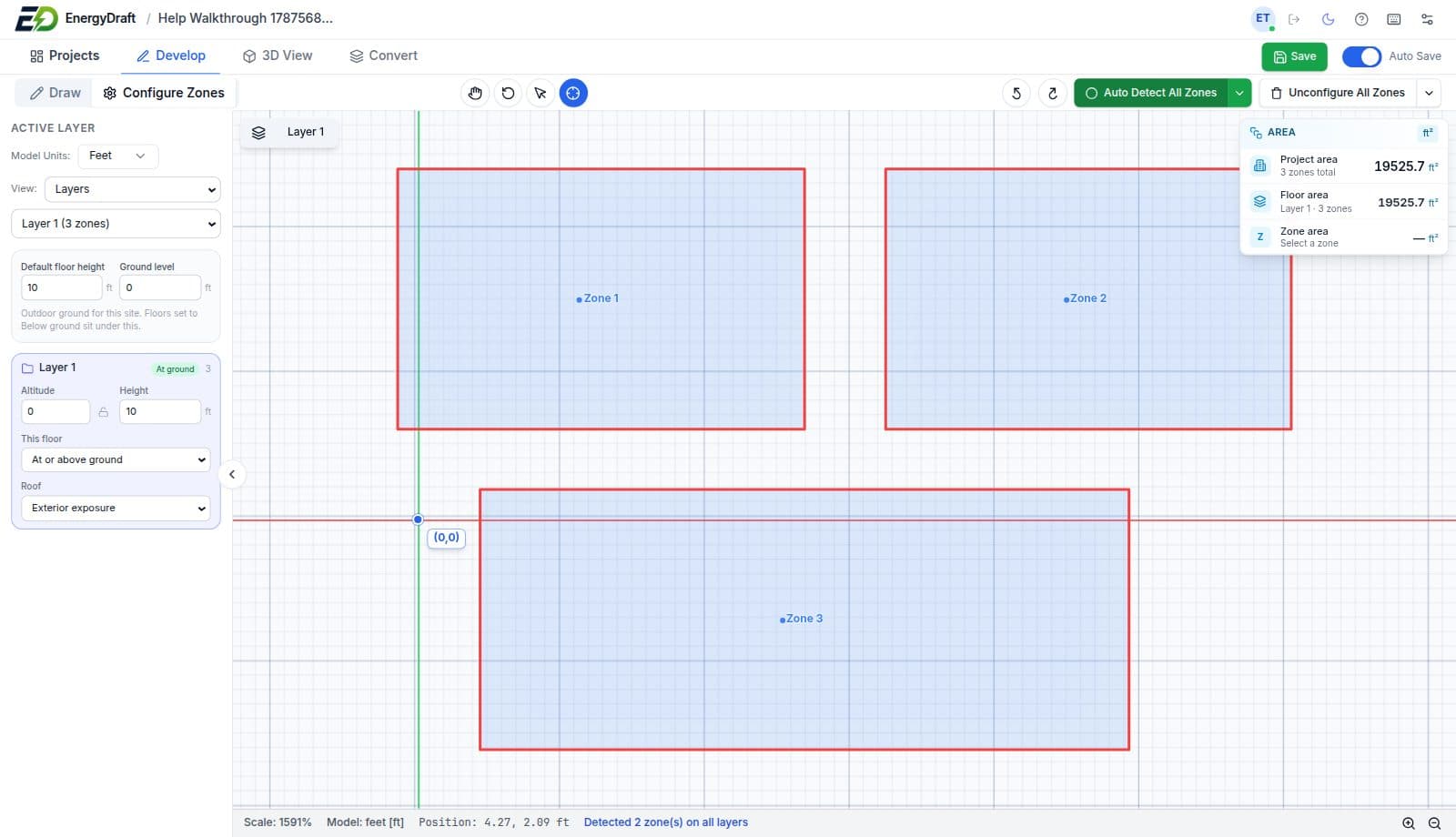
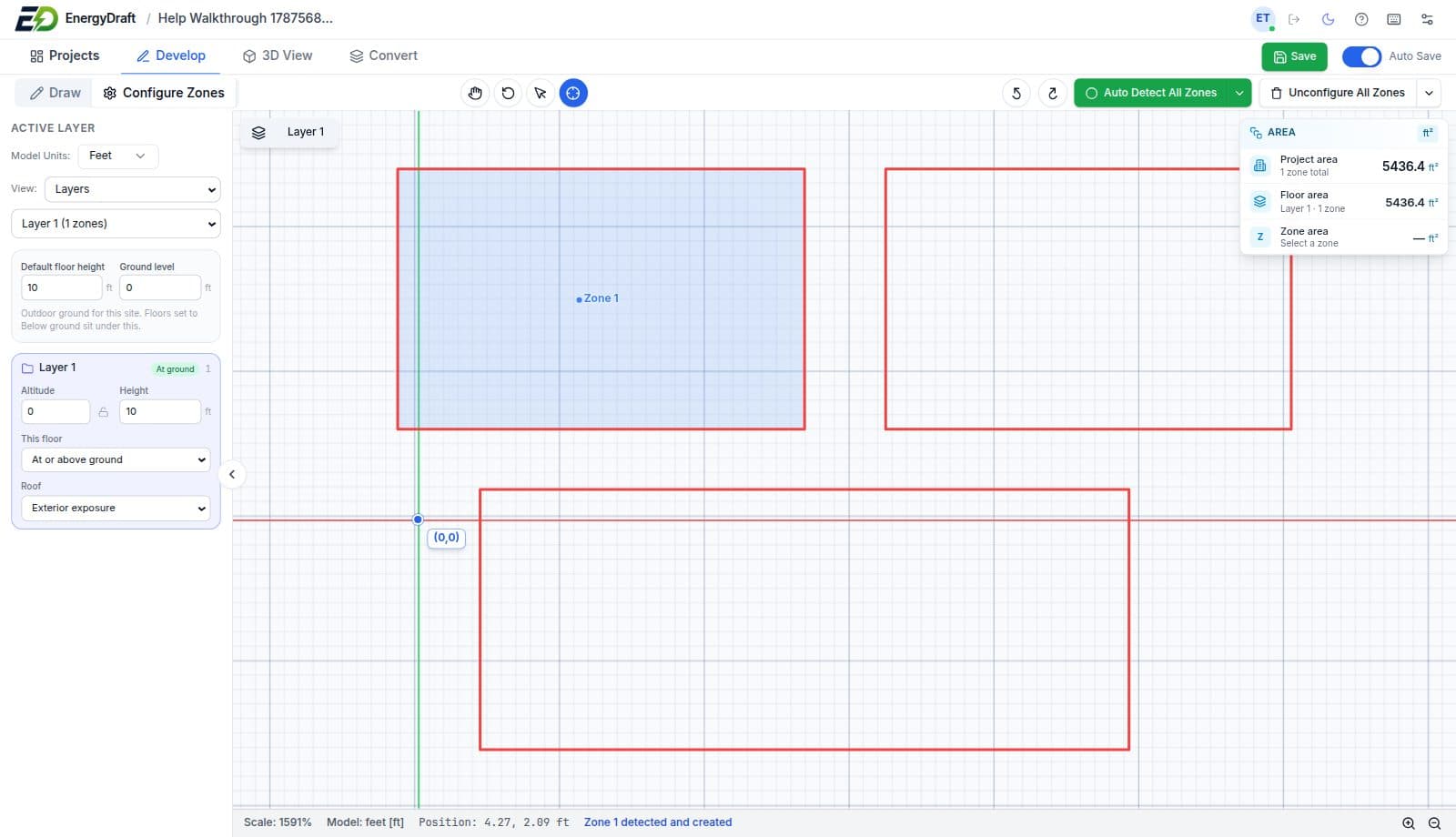
Switch to Configure Zones when the rooms are drawn. Detect one enclosed space, or auto-detect all zones on the layer. Set default floor height and ground level, then confirm area before you move to 3D.
- Detect Zone for a single enclosed space
- Auto Detect All Zones across the current layer
- Floor height, ground level, and live project area
3D View
See the building. Place doors and windows.
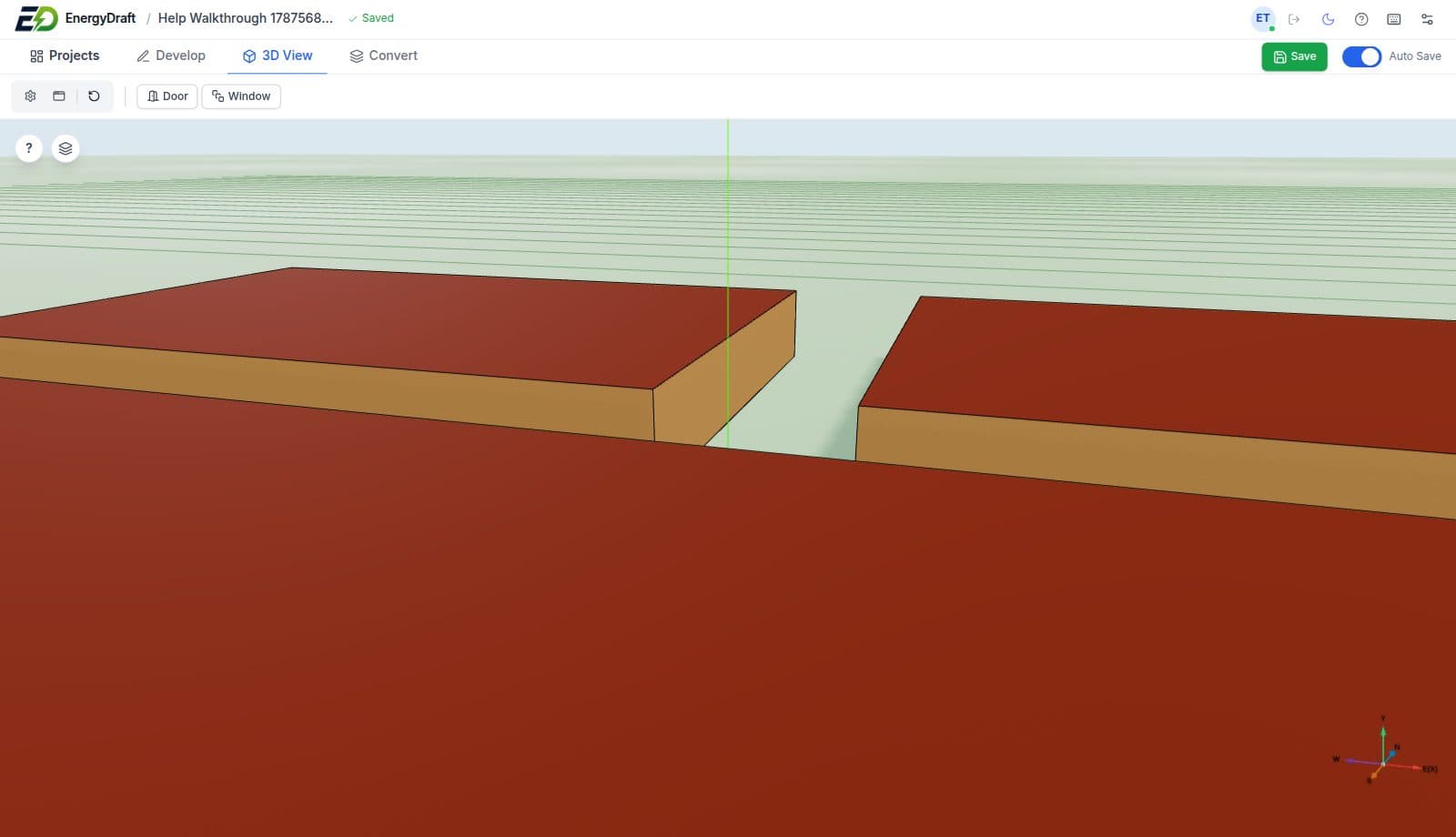
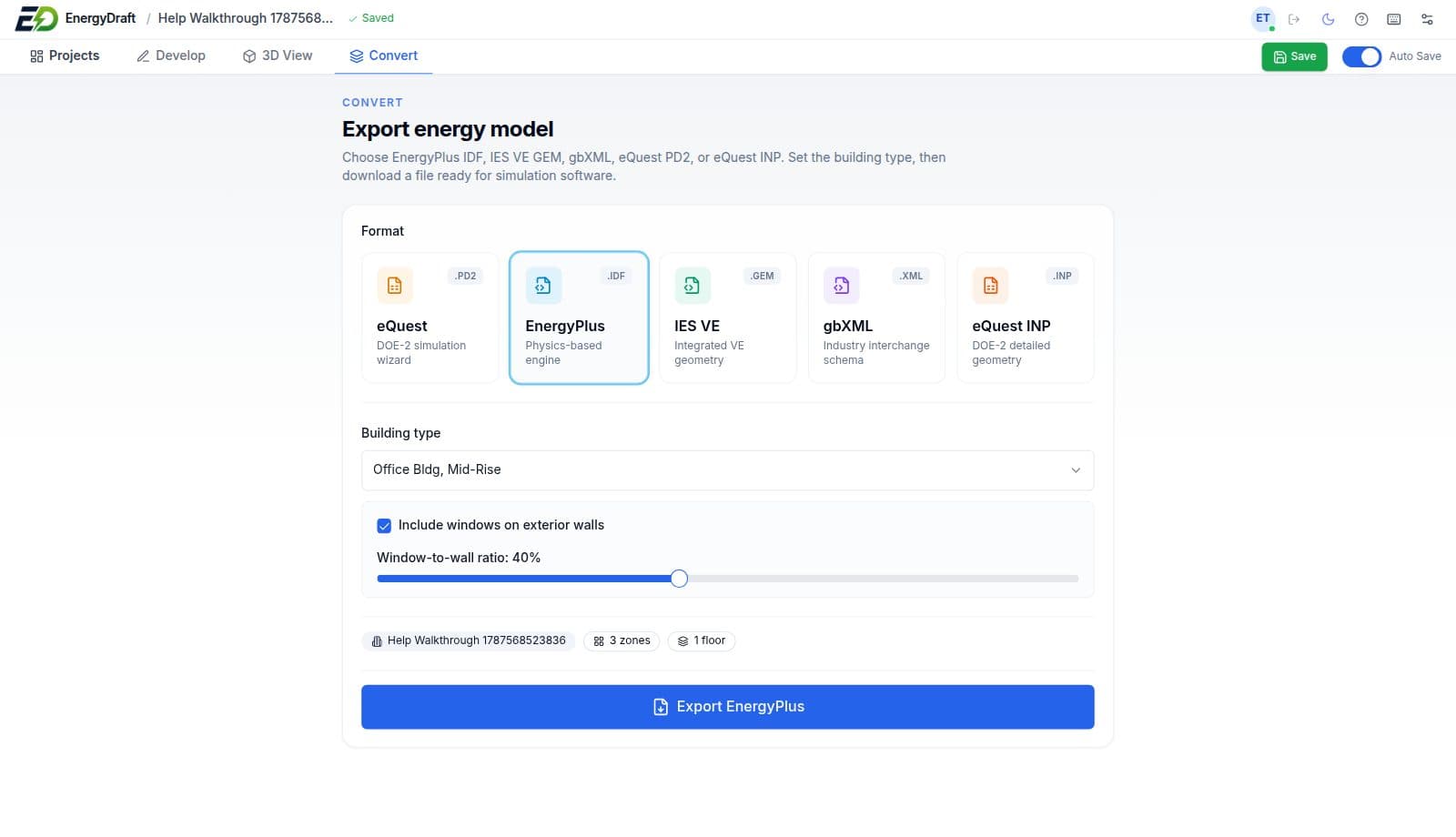
3D View extrudes the plan so you can orbit the massing. Select a wall, then draw a door or window with width and height. On export, include windows on exterior walls and set window-to-wall ratio.
- Orbit the extruded building on a grid ground plane
- Place doors and windows on selected walls
- Set window-to-wall ratio when you export
Convert
Export a file your simulation tools can open.
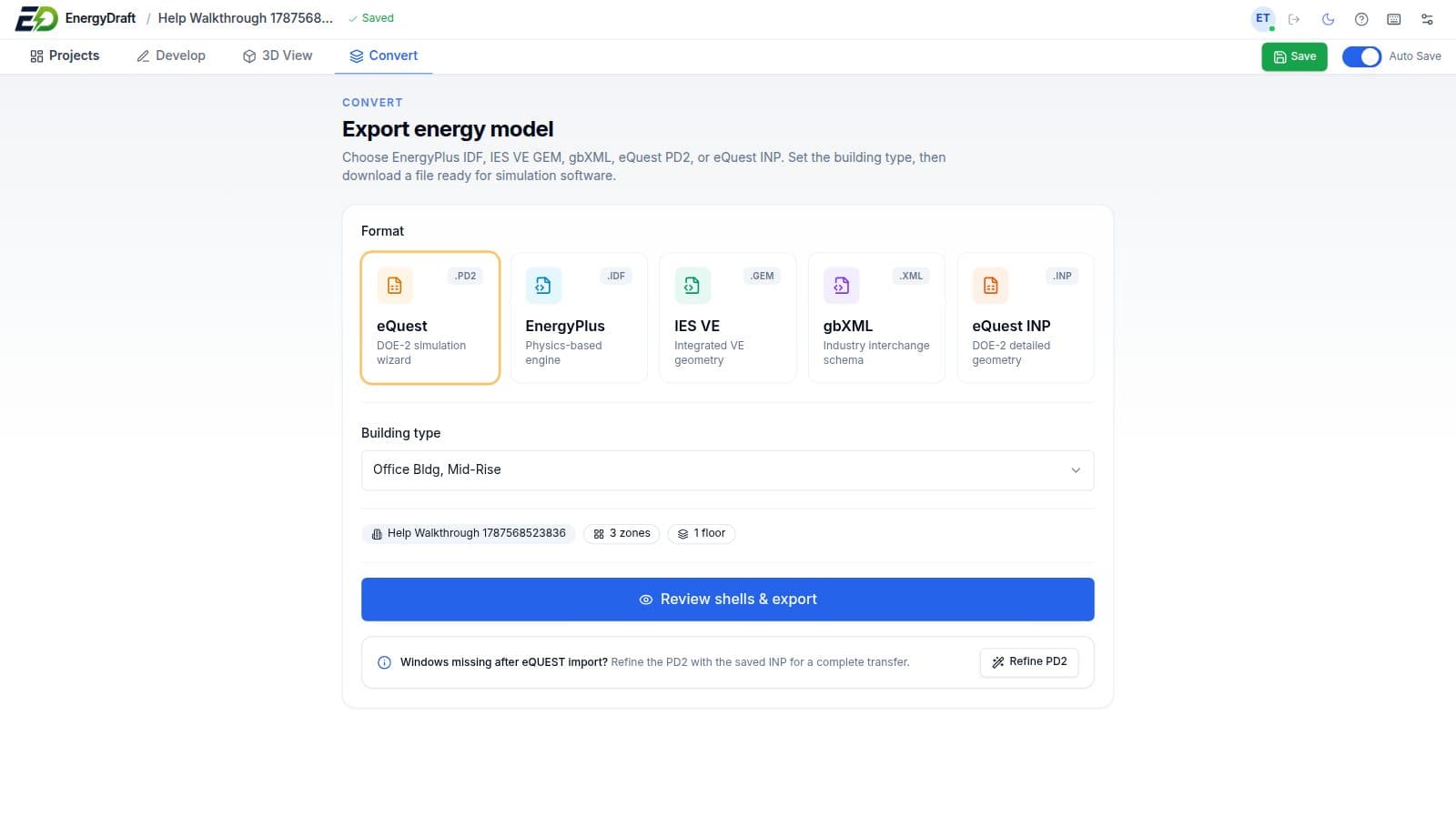
Choose a format, set building type, review the zone and floor count, then export. EnergyDraft writes EnergyPlus IDF, IES VE GEM, gbXML, OpenStudio OSM, and eQUEST PD2.
- EnergyPlus IDF and OpenStudio OSM
- IES VE GEM and gbXML interchange
- eQUEST PD2, with building type and window options
Pricing
One plan. The complete EnergyDraft application.
EnergyDraft Pro
$550per seat / year
Billed annually per seat. Each seat is a Windows license for the full app: import, draw, detect zones, review in 3D, and export every supported format.
- Full Windows desktop app: Projects, Develop, 3D View, and Convert
- Import DXF and DWG floor plans, plus existing energy models
- Reference-image import and calibration
- 2D CAD-like drawing with snaps, layers, and units
- Zone detect: single zone or auto-detect all
- 3D review with doors, windows, and window-to-wall ratio
- Export EnergyPlus IDF, IES VE GEM, gbXML, OpenStudio OSM, and eQUEST PD2
Book a demo or get in touch
Tell us about your buildings and the formats you need. We will reply at the email you provide.
Prefer email? akulasakethraj@energydraft.com